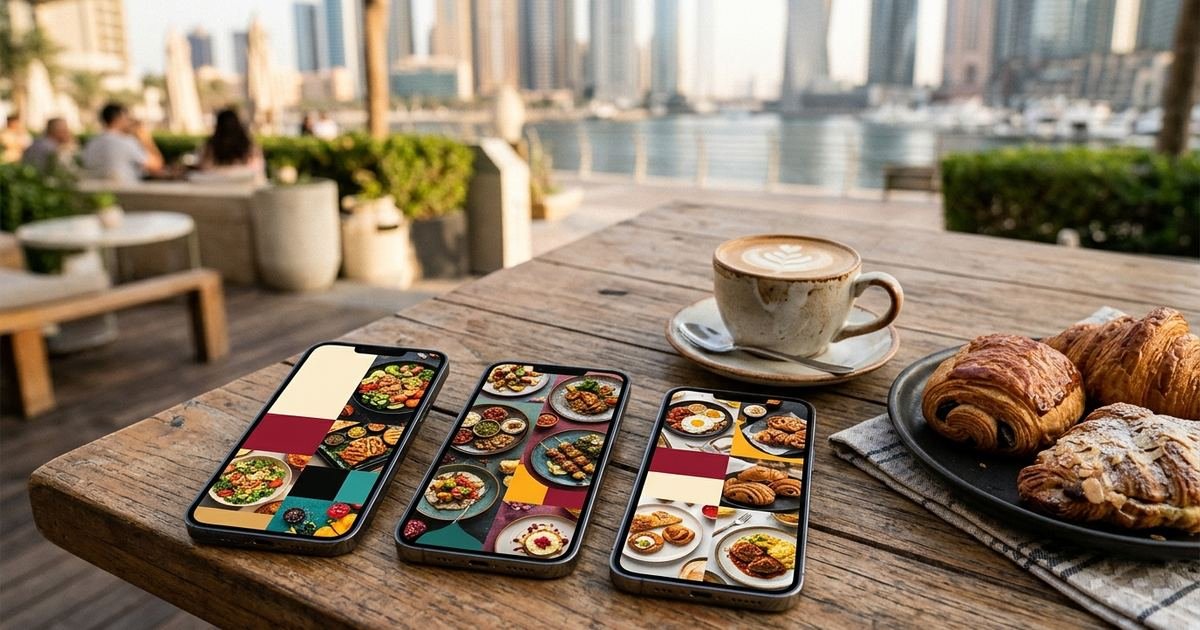
How to switch from a paper menu to a QR menu without changing how your staff work
Most paper-menu restaurants do not have a waiter app, a kitchen screen or a process for phone orders, and they should not need one to go digital. The safest switch changes what the guest reads first, and leaves how your team works alone until you choose otherwise.
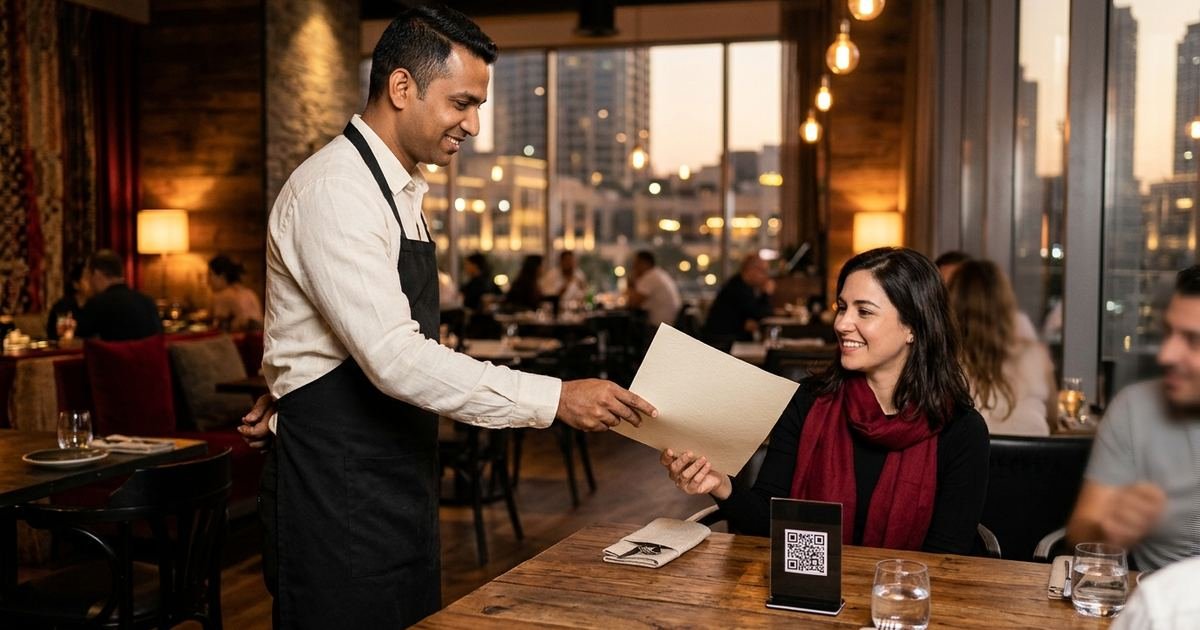
To switch from a paper menu to a QR menu without disrupting service, start with a view-only QR menu: guests scan and read, waiters still take orders the usual way, and you keep printed menus on the floor. Run it for two to four weeks, then add phone ordering one table or section at a time, with waiters confirming each order.
Why QR menus fail in paper-menu restaurants
When a QR menu does not work out, it is rarely the QR code. It is everything that came with it. The restaurant switched on phone ordering, a kitchen screen and online payment in the same week, the waiters did not know which orders were theirs, and the kitchen got tickets nobody had checked. A week later the paper menus came back.
A restaurant that runs on paper menus usually has a working rhythm: the waiter greets, takes the order on a pad, the order goes to the kitchen, the bill is printed at the end. That rhythm is worth protecting. Your staff know it, your regulars expect it, and it works.
Change what the guest reads first. Change how your team works later, and only if it helps.
Step 1: build the QR menu from the paper menu you already have
Your printed menu is the best starting point because it already has every dish, price and description your guests know. Upload the PDF or photos of the pages and let the software read it, then check it line by line: prices, sizes, add-ons and the Arabic names. The phone menu should match the table menu exactly on day one, so nobody sees two different prices.
Step 2: go live view-only
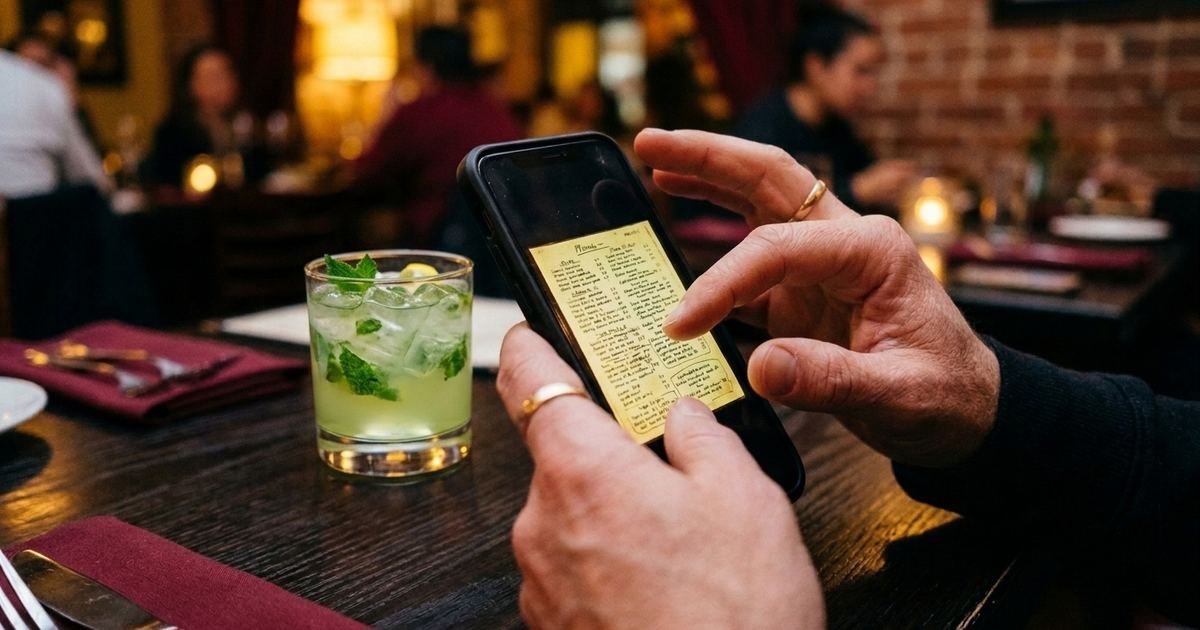
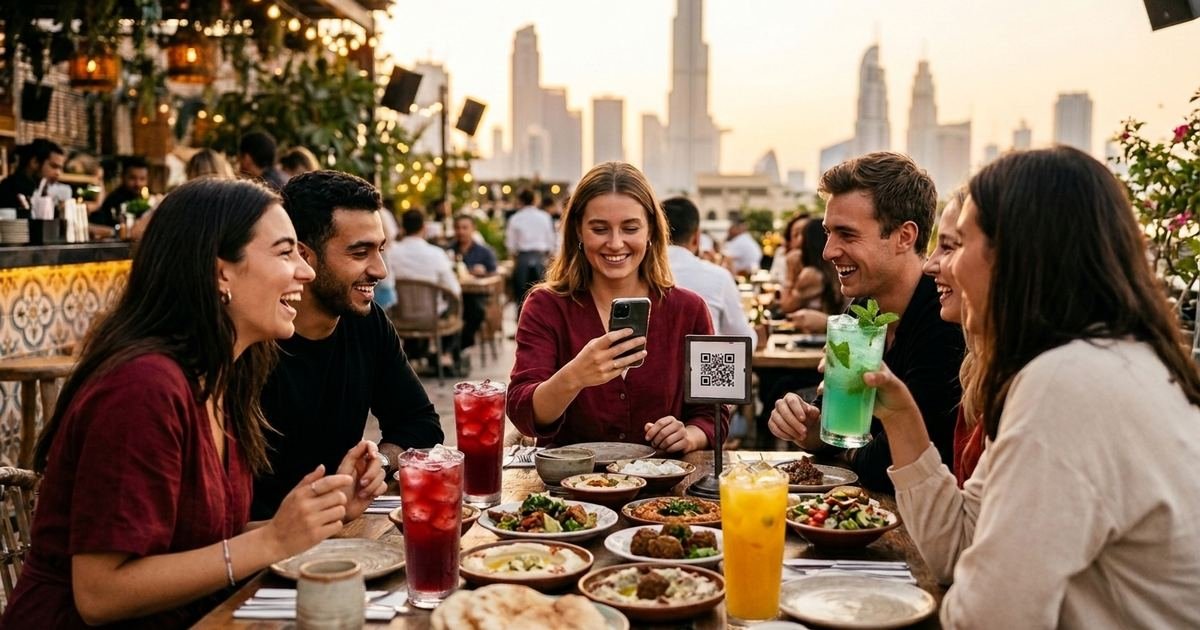
Put the QR codes on the tables but keep phone ordering switched off. Guests scan, read the menu with photos, in English or Arabic, and filter out allergens. Then they call the waiter and order exactly as before. Nothing reaches the kitchen from a phone.
This is the step most guides skip, and it is the one that makes the switch painless. Your waiters do not learn anything new, the kitchen sees the same tickets, and you find out whether your guests like scanning before you change a single process.
Step 3: keep paper menus on the floor
Many diners still prefer paper. In a 2022 Technomic survey of 1,000 US consumers, 88% said they prefer a paper menu, including 86% of younger respondents. There is no comparable published survey for the UAE, but the lesson travels: a QR menu should be an option, not the only way to read the menu.
Some guests will always want paper: older guests, people with a flat phone battery, tourists without data, and anyone who simply prefers it. Do not take paper away. Keep a small stack of printed menus and hand them out whenever someone asks.
The trick is to print paper from the same source as the phone menu. When a price changes, you change it once, and the next print run matches. Put the QR code on the printed menu too, so a guest holding paper can still open the photos or switch to Arabic.
Step 4: brief the team in five minutes
Waiters need one line for guests and one reassurance for themselves:
- For guests: "Scan here for photos and Arabic, or I can bring you a menu."
- For the team: "You still take every order. Nothing else changes."
If a guest has no phone or no data, the waiter can open the menu on their own phone or a restaurant tablet and show it at the table. That keeps the photos and allergen information available to everyone.
Step 5: watch for two to four weeks
Before changing anything else, look at what is happening:
- How many tables scan each day, and at which times.
- Which dishes guests open most, and which they never look at.
- What waiters hear: "Love the photos", or "Can I have a paper one?"
If most tables scan and guests like it, you can think about the next step. If they do not, you have lost nothing: you still have a menu that is easier to update than a reprint.
Step 6: add phone ordering slowly, with the waiter in control
Phone ordering can save time on busy nights, but only if it fits how your floor works. Two rules keep it safe:
- Start small. Turn it on for the terrace, one section, or quiet afternoons. Keep the rest of the restaurant as it is.
- The waiter confirms every phone order. A guest sends a basket from their phone, the waiter checks it (is this table right, is the dish available, did they mean two or twelve?) and only then does it go on the bill. The waiter can also decline it. The guest never edits the bill directly.
If ordering adds work instead of saving it, switch it off. The menu keeps working.
What each stage changes
| Stage | Guest | Waiter | Kitchen |
|---|---|---|---|
| Paper only | Reads paper | Takes order on pad | Same tickets |
| QR view-only | Scans or reads paper | Takes order on pad | Same tickets |
| QR + waiter-confirmed ordering | Can send a basket | Confirms or declines each phone order | Same tickets, checked by the waiter |
| Full self-ordering | Orders and pays alone | Runs food, handles exceptions | Orders arrive directly |
Most paper-menu restaurants are well served by the first two or three rows. The last row suits fast casual and food courts more than table service.
How WOW Table is set up for this
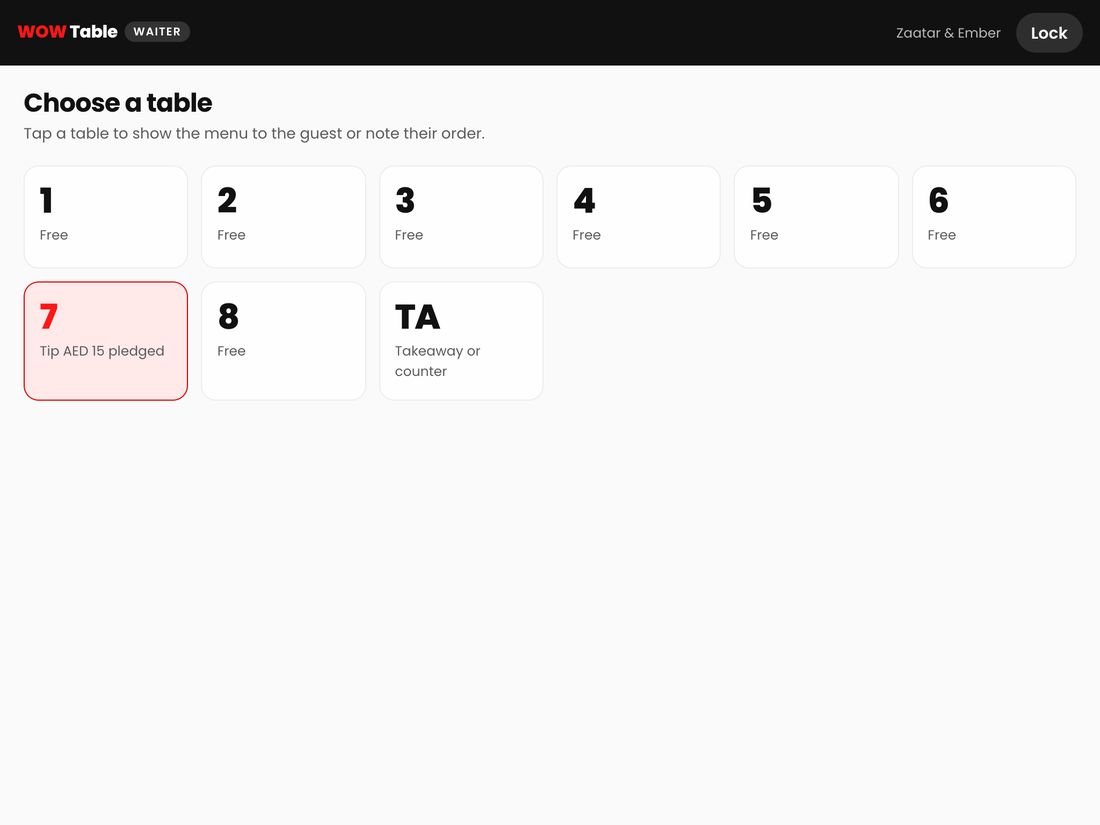
We built WOW Table around this order of steps. Phone ordering is switched off when you start, so your first live menu is view-only. When you do switch it on, a guest's order waits for a waiter to confirm it in waiter mode, which runs in the browser of any phone or tablet with a PIN, no app to install. You can print the paper menu from the same menu, with Arabic names and a QR code on it, so paper and phone always match. You can upload your current menu and see it on your phone before deciding anything.
Questions
Do I have to stop using paper menus if I get a QR menu?
No. Keep printed menus for guests who prefer them. Print them from the same source as the QR menu, with the QR code on them, so prices always match.
Will my waiters need a new app?
Not for a view-only QR menu: waiters take orders exactly as before. If you later add phone ordering, WOW Table waiter mode runs in the phone browser with a PIN, so there is nothing to install.
Should guests order from their phone straight to the kitchen?
For table-service restaurants, it is safer to have the waiter confirm each phone order first. That catches wrong tables, sold-out dishes and mistakes before they reach the kitchen or the bill.
How long should we run a view-only QR menu before adding ordering?
Two to four weeks is enough to see how many tables scan, which dishes guests look at, and what your team hears from guests.
Do diners prefer paper menus or QR menus?
Surveys in the US show most diners still prefer paper: 88% in a 2022 Technomic survey of 1,000 consumers. No comparable UAE survey has been published. Offering both, from the same source, avoids the question.
What about guests without a smartphone or data?
Hand them a paper menu, or let the waiter show the menu on a staff phone or tablet so they still see photos and allergens.
Sources
- Restaurant Business: Customers really don't like QR code menus (Technomic survey, 21 Jun 2022)
- Food Network: PYMNTS and Paytronix survey on QR menus (13 Jun 2024)
Checked 27 Nov 2026. Rules and prices change, so check the source before you rely on it.